
This hotkey is useful for anyone exiting positions manually or just to have it at hand when things are going south or for advanced scripting when calling an Exit is needed at a specific situation or a specific price.
The features of the universal Exit hotkey
- One hotkey for seamless long and short execution.
- Intelligent detection and rounding of sub-dollar prices.
- Precise limit-order execution.
- Fully operable without a chart window.
- Advanced syntax directly targets a designated Montage window, enabling use from anywhere.
- Automated exits using an adjustable offset from the current market price.
Prerequisites
Having DAS Trader Pro set-up as described in the previous post https://www.guardiantrading.com/how-to-prepare-your-das-trader-pro-for-advanced-hotkeys-scripting/
The EXIT Hotkey
It can be used as a montage hot button or any window button, hotkey, or script.
$montage=getwindowobj("Montage1");
$MYPOS=GetAccountObj($montage.account).getposition($MONTAGE.Symbol).share;
if ($MYPOS==0)
{
MsgBox("No position to close");
}
else
{
$MONTAGE.CXL ALLSYMB;
if ($MYPOS>0)
{
$Montage.price=$montage.last*0.98;
}
else
{
$Montage.price=$montage.last*1.02;
}
if ($MONTAGE.price>=1)
{
$MONTAGE.Price=Round($Montage.price,2);
}
else
{
$MONTAGE.Price=Round($Montage.price,4);
}
//set your exit route
$MONTAGE.ROUTE="LIMIT";
$MONTAGE.Share=$MONTAGE.POS;
$MONTAGE.Send=Reverse;
}
Configurable parameters
The offset is set to 2% from the last price. It means that the limit price for the exit will be set to 2%. I found the 2% being safe to use as larger values could be denied by the order servers. Make sure you use something you have tested to be working for your style. It is defined by the 0.98 and 1.02 numbers.
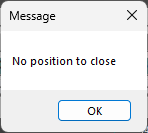
If there is no position opened for the symbol, it will pop up a message. If it is not needed, the line can be deleted
The route is set to “LIMIT”, use your preferred route if you need quicker exits.
For exiting with rebates, the offset needs to be reversed, but that does not guarantee an exit, so make sure you can afford exiting with rebates.
How to call the exit hotkey from within an alert or a script
Save the above hotkey into the hotkeys and name it as EXIT
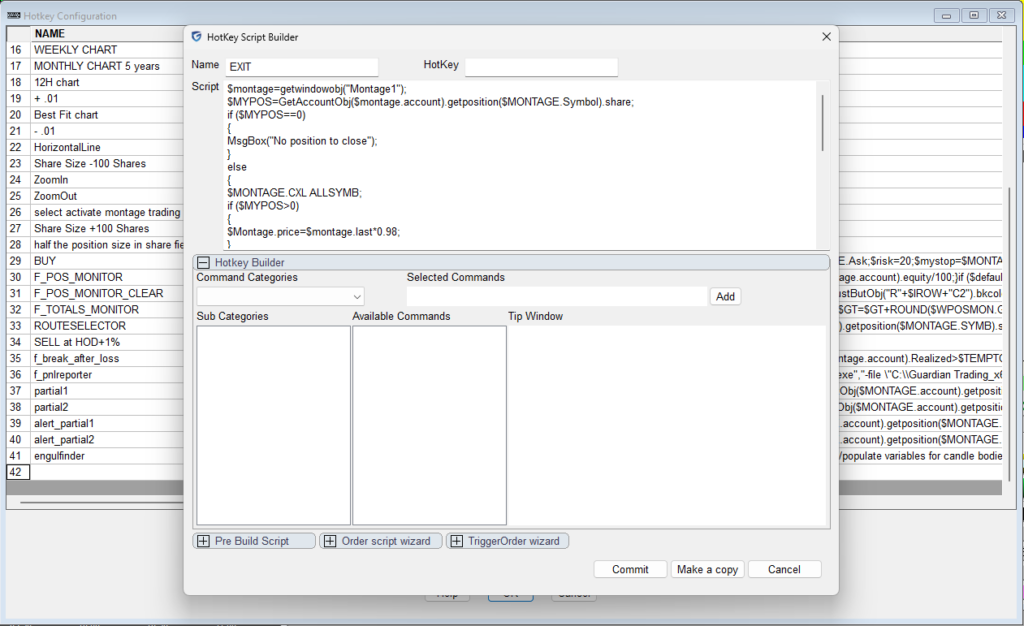
Now we can call the EXIT hotkey from within a price alert. The creation of an alert has been described here:
DAS Trader Pro – How to create alerts with hotkeys – Guardian Trading
We need to add one more line to the simple price alert to add the Exit hotkey call into the Script field
$MYSYMB=$MONTAGE.SYMB;
$MYALERT=NewAlertObj();
$MYALERT.name="Price Reached";
if($MONTAGE.PRICE<$MONTAGE.LAST)
{
$MYALERT.AddItem("Last Sale","<",$MONTAGE.PRICE);
}
else
{
$MYALERT.AddItem("Last Sale",">",$MONTAGE.PRICE);
}
$MYALERT.Speak=1;
$MYALERT.SYMB=$MYSYMB;
$MYALERT.PlaySound=0;
$MYALERT.Autodelete=1;
$MYALERT.Script="$montage.symbol="+$MYSYMB+";$montage.exechotkey\(\"EXIT\"\);";
$MYALERT.Loop=0;
$MYALERT.save();
which will create an alert like this
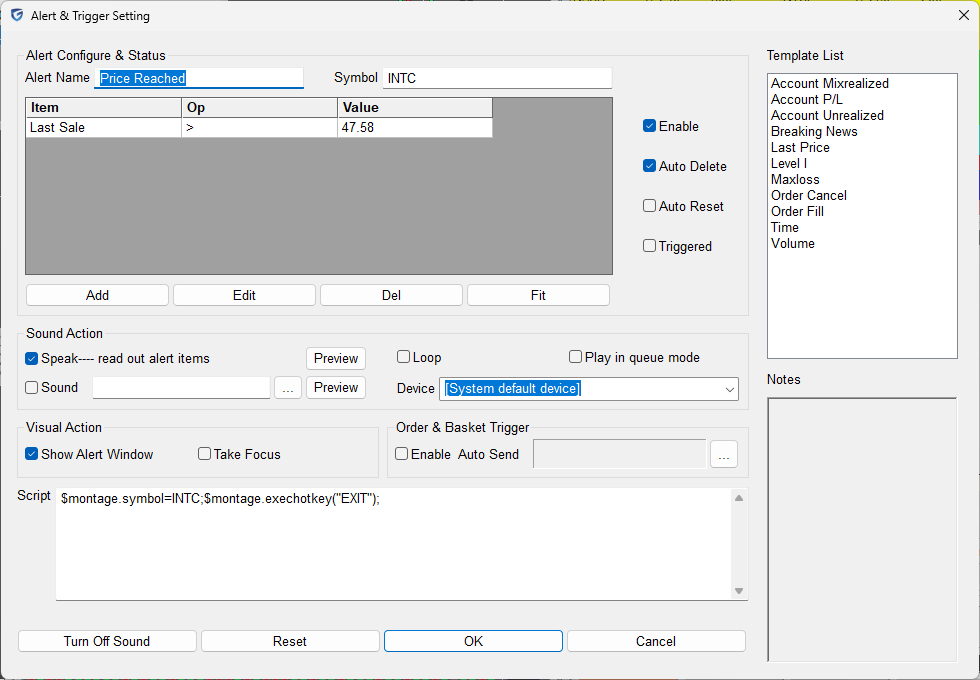
We can create one alert above and one below the average price, effectively creating a range order mechanism working in all market hours.
When the price reaches one side or the other of the trade, the alert is triggered, the EXIT is called, and the alert is auto-deleted. The other alert remains, but even if it triggers, it will not do anything other than popping the message that there is no position to close.
More advanced uses of these techniques, like auto-deleting the other alert and auto-replacing them based on unrealized or realized profits, or partial exits are possible.
The limits
The limits of this solution are that the PC and the DAS Trader Pro need to be running, as all the logic is present at the PC not at the broker. That means that the price is being monitored on your pc and the exit is triggered only once the program on your PC detected the price change.