
If you are trading any strategies that have technical targets in the form of any indicator (which is called study in DAS Trader Pro), you might find this useful.
Objectives
Exit the trade when VWAP is reached.
Use single button solution to control the functionality
Challenges
As you know, VWAP is a dynamic study constantly changed with price. So it is not enough to read the VWAP and set the profit target order to that price at the time of an entry.
The solution
To achieve our objective, we will need a few things
- An alert that will monitor the price against the VWAP. This is already pre-built functionality into DAS Trader Pro
- An exit hotkey that will liquidate the position when the VWAP is reached and that will do nothing if the VWAP is reached while no position is opened
- A button that will enable or disable the functionality
- A script that will check if we have the functionality enabled or disabled and indicate it with a color
Alert that will monitor the price action against VWAP
This can be done manually
If we want to do it quickly, the script is the way to go.
$MYPOS=GetAccountObj($MONTAGE.account).getposition($MONTAGE.symb).share;
$MYALERT=NewAlertObj();
$MYALERT.name="VWAP REACHED "+$MONTAGE.SYMB;
if($MYPOS==0)
{
return;
}
if($MYPOS<0)
{
$MYALERT.AddItem("Last Sale",">",VWAP);
}
if($MYPOS>0)
{
$MYALERT.AddItem("Last Sale","<",VWAP);
}
//call standard exit hotkey
$MYALERT.Script="$montage.symbol="+$MONTAGE.SYMB+";$montage.exechotkey\(\"EXIT\"\);";
$MYALERT.Speak=0;
$MYALERT.SYMB=$MONTAGE.SYMB;
$MYALERT.PlaySound=0;
$MYALERT.Autodelete=0;
$MYALERT.Loop=0;
$MYALERT.PopupWindow=0;
$MYALERT.save();
To add more functionality than just a simple alert creation, we can create a nice button that will show us th
Creating the functionality button
To add the functionality, we will need a window button.
if($VWAPTARGETENABLED==1)
{
$loop=10;
while ($loop>0)
{
$TODELALERT=GetAlertObj("VWAP REACHED");
if (IsObj($TODELALERT))
{
$TODELALERT.delete();
}
$loop=$loop-1;
}
$VWAPTARGETENABLED=0;
}
else
{
$VWAPTARGETENABLED=1;
$MYPOS=GetAccountObj($MONTAGE.account).getposition($MONTAGE.symb).share;
if($MYPOS==0)
{
return;
}
$MYALERT=NewAlertObj();
$MYALERT.name="VWAP REACHED";
if($MYPOS<0)
{
$MYALERT.AddItem("Last Sale",">","VWAP");
}
if($MYPOS>0)
{
$MYALERT.AddItem("Last Sale","<","VWAP");
}
//call standard exit hotkey
$MYALERT.Script="$montage.symbol="+$MONTAGE.SYMB+";$montage.exechotkey\(\"EXIT\"\);";
$MYALERT.Speak=0;
$MYALERT.SYMB=$MONTAGE.SYMB;
$MYALERT.PlaySound=0;
$MYALERT.Autodelete=0;
$MYALERT.Loop=0;
$MYALERT.PopupWindow=0;
$MYALERT.save();
}
This code effectively checks if the alert variable is enabled or not. If it is enabled it will disable it and delete the alert by the name. If it is disabled, it will enable it and create a new alert.
Prepare the exit hotkey
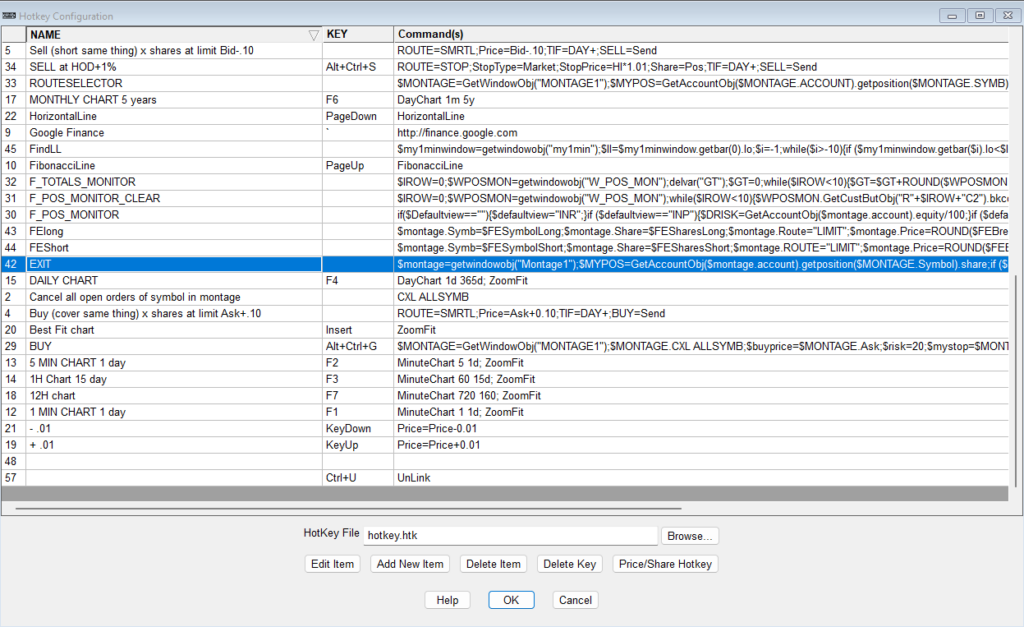
This is the standard universal exit hotkey as described in the post https://www.guardiantrading.com/das-trader-pro-universal-exit-hotkey-function-for-all-market-hours/
$montage=getwindowobj("Montage1");
$MYPOS=GetAccountObj($montage.account).getposition($MONTAGE.Symbol).share;
if ($MYPOS==0)
{
MsgBox("No position to close");
}
else
{
$MONTAGE.CXL ALLSYMB;
if ($MYPOS>0)
{
$Montage.price=$montage.last*0.98;
}
else
{
$Montage.price=$montage.last*1.02;
}
if ($MONTAGE.price>=1)
{
$MONTAGE.Price=Round($Montage.price,2);
}
else
{
$MONTAGE.Price=Round($Montage.price,4);
}
//set your exit route
$MONTAGE.ROUTE="LIMIT";
$MONTAGE.Share=$MONTAGE.POS;
$MONTAGE.Send=Reverse;
}
Just make sure the hotkey is named EXIT in your hotkeys list
Creating the alert monitoring function
This function will check if we have an alert with the specified VWAP name and indicate it with a color on our newly created button. It is not mandatory and if you are ok to keep watching your alerts window for the alert presence, you do not need it.
Create a hotkey and name it check_vwap_alert
$VWAPALERT=GetAlertObj("VWAP REACHED");
if (isobj($VWAPALERT))
{
getwindowobj("my1min").GetCustButObj("b_vwap_target").bkcolor="green";
if ($VWAPALERT.Triggered==1)
{
getwindowobj("my1min").GetCustButObj("b_vwap_target").bkcolor="gray";
}
}
else
{
getwindowobj("my1min").GetCustButObj("b_vwap_target").bkcolor="gray";
}
This hotkey checks every second if an untriggered alert named VWAP REACHED exists.If it does, it will paint the control button green, otherwise it will paint it grey.
After the hotkey is saved, we need to run it every second, which is done in the timer event script window.
The solution in action
To enable or disable the alert, just press the button.
Once the VWAP target is reached, the alert triggers, calls the symbol change on the montage, calls the exit hotkey and sets the triggered state to YES which gets detected by the check_vwap_alert script which paints the button grey.
In case the alert exists, while there is no position opened, nothing will happen because the EXIT hotkey has a position check parameter.
You can keep your existing stop loss or range order in place. The existing orders for the symbol will be canceled by the EXIT hotkey automatically too.
Similarly, when there is no position opened and you press the create alert button, it will not create the alert and any potential leftover alert will get automatically cleaned with the next press of the button.
The limits
The limits of this solution are that the PC and the DAS Trader Pro need to be running, as all the logic is present at the PC not at the broker. That means that the price is being monitored on your pc and the exit is triggered only once the program on your PC detected the price change.
A bit different solution
There is a bit of a different solution available to achieve the same thing. We can monitor a global variable for its value like this.
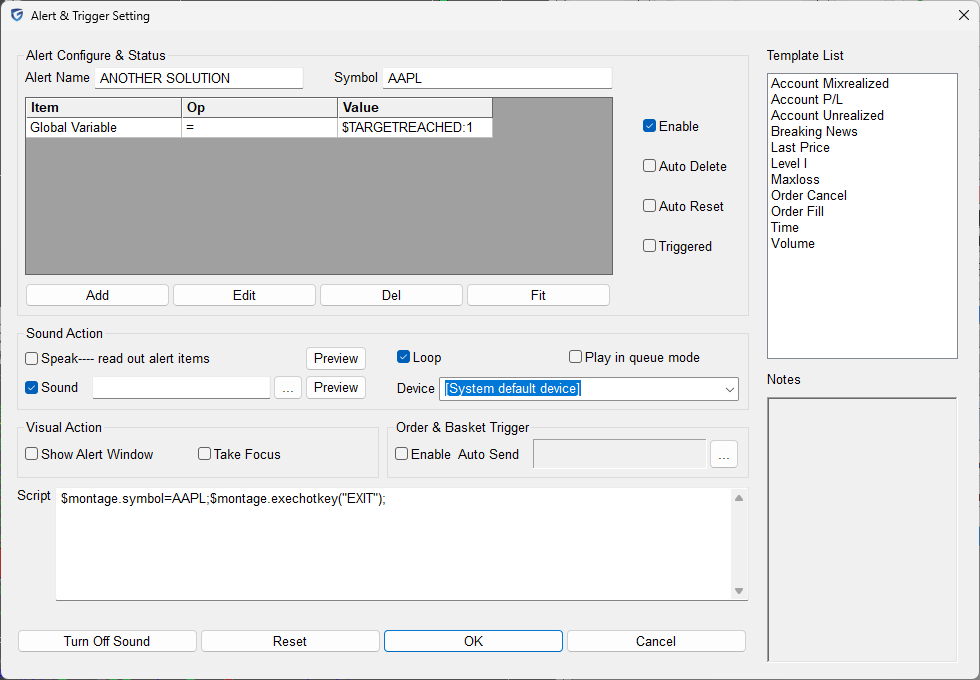
That leaves it up to us to calculate the $TARGETREACHED variable constantly in a chart update script by reading the current price and comparing it to the vwap.
It is a much more complicated solution that requires bulletproof code to cover all situations at once, but it might be more usable than the previous one. Especially in multi position monitoring scenarios.