
I used to struggle with forgetting some of the rules for my entries. I was able to get around it with the help of a simple solution – a green light button for entries.
It is working in a few steps
- Check if my condition is met
- Change the color of the button to green if yes or to grey if not
Since the DAS Trader Pro version
The condition needs to be mathematically exact. To get an idea of what the possibilities are, here are some examples that I use every day.
- If the previous candle type was a doji
- If the 50 SMA is above VWAP
- If the price action is more than double the ATR(14) above the 9EMA
- If the parabolic SAR indicator is above the 9EMA
- If there are 3 higher highs on the 5-minute chart
These are all quite specific, so let me show an example of a red/green light for a condition that is like this:
Show a red light if the symbol today has already reached its daily ATR(14). Otherwise, show a green light.
Meaning, I want to be alerted on the chart that the symbol has already reached its ATR and that I should not expect a bigger move (or that I shall start looking for a reversal).
The semaphore button
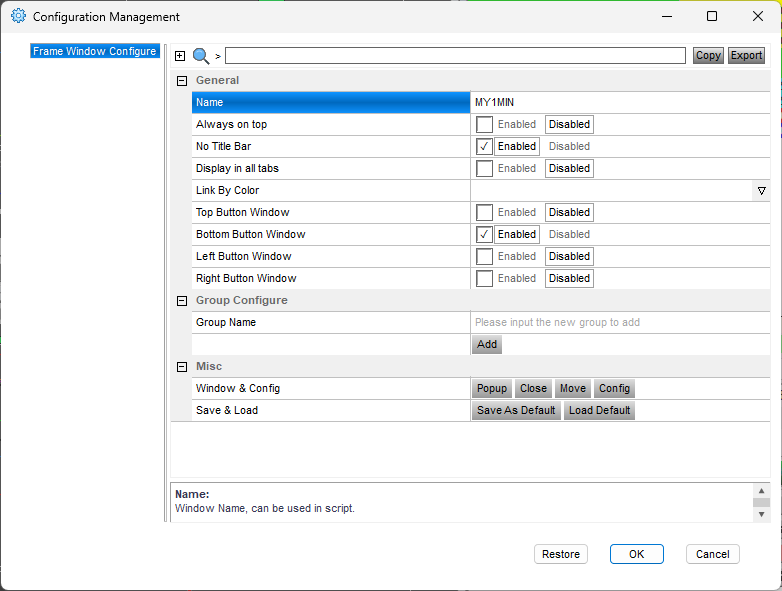
Create a named button on a named chart window
For this purpose I choose the 1-minute chart, but it can be any chart window.
Name the indicator in a named chart window
We need to place the ATR indicator into the daily chart window and name both the chart window and the indicator.
The chart window name is MYDAILY and the ATR study name is MYATR
Create the hotkey
The hotkey will read the ATR variable from the named daily chart, check if the condition is met and address the named chart window and the named button for changing its background color.
save the hotkey as h_atr_check
// read the ATR value
$THEATR=getwindowobj("MYDAILY").getstudyval("MYATR");
// read todays HI and LO difference
$TODAYSDIFF=ABS($MONTAGE.HI-$MONTAGE.LO);
// compare if todays HI vs LO is greater than ATR
if ($TODAYSDIFF>=$THEATR)
{
// color the button RED
getwindowobj("MY1MIN").GetCustButObj("B_SEMA1").bkcolor="red";
// change button text
getwindowobj("MY1MIN").GetCustButObj("B_SEMA1").text="ATR reached";
}
else
{
// color the button GREEN
getwindowobj("MY1MIN").GetCustButObj("B_SEMA1").bkcolor="green";
// change button text
getwindowobj("MY1MIN").GetCustButObj("B_SEMA1").text="ATR not reached";
}
Call the hotkey in the timer event script
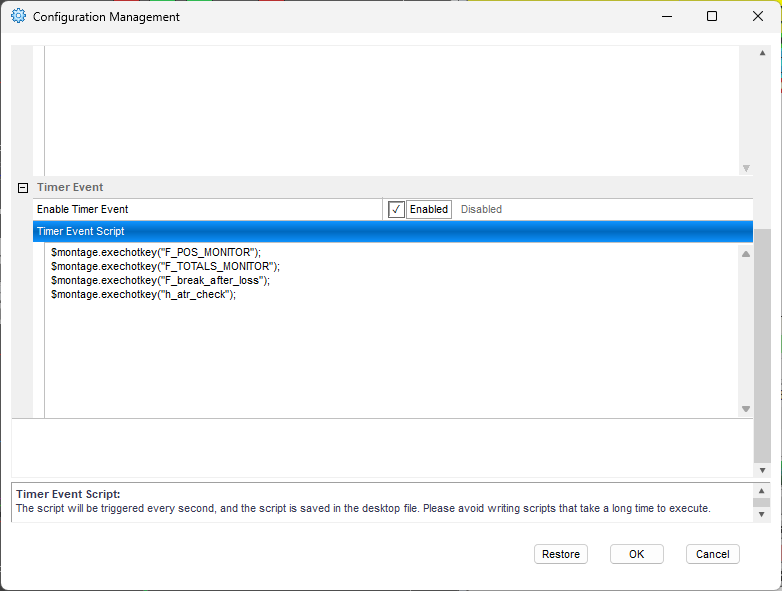
By calling the hotkey in the timer event script, we achieve every second update for the conditions check. It is enough to do so every second. For other types of checks, it can be once a minute or once in 5 minutes, which can be solved with some advanced scripting too, but that will be covered in a different article. Place this code into the timer event script
$montage.exechotkey("h_atr_check");
Test it
Clicking through the watchlist will give us automated change of the button color and text based on the condition.
The semaphore background
Since the version of DAS Trader Pro 5.8.2.1, we can change the color of the chart background or chart axis with a script.
Name the chart window that should act as the semaphore.
Create the hotkey
This hotkey is very similar it just changes the color of the chart background instead of the color of the button. Name the hotkey h_atr_check.
// h_atr_check
// read the ATR value
$THEATR=getwindowobj("MYDAILY").getstudyval("MYATR");
// read todays HI and LO difference
$TODAYSDIFF=ABS($MONTAGE.HI-$MONTAGE.LO);
// compare if todays HI vs LO is greater than ATR
if ($TODAYSDIFF>=$THEATR)
{
// color the chart RED
getwindowobj("MY1MIN").Backgroundcolor="174,74,74";
}
else
{
// color the chart GREY
getwindowobj("MY1MIN").Backgroundcolor="74,74,74";
}
Call the hotkey in the timer event script
This is the same as before, just add the line to call the hotkey in the timer event script.
Test it
By clicking through the watch list, see how the background is telling you to stay away from entering.
The conditions can be combined into multi-level checks, so if your entry rules are very complex, it can make your life much easier, and you can skip those unwanted entries.